
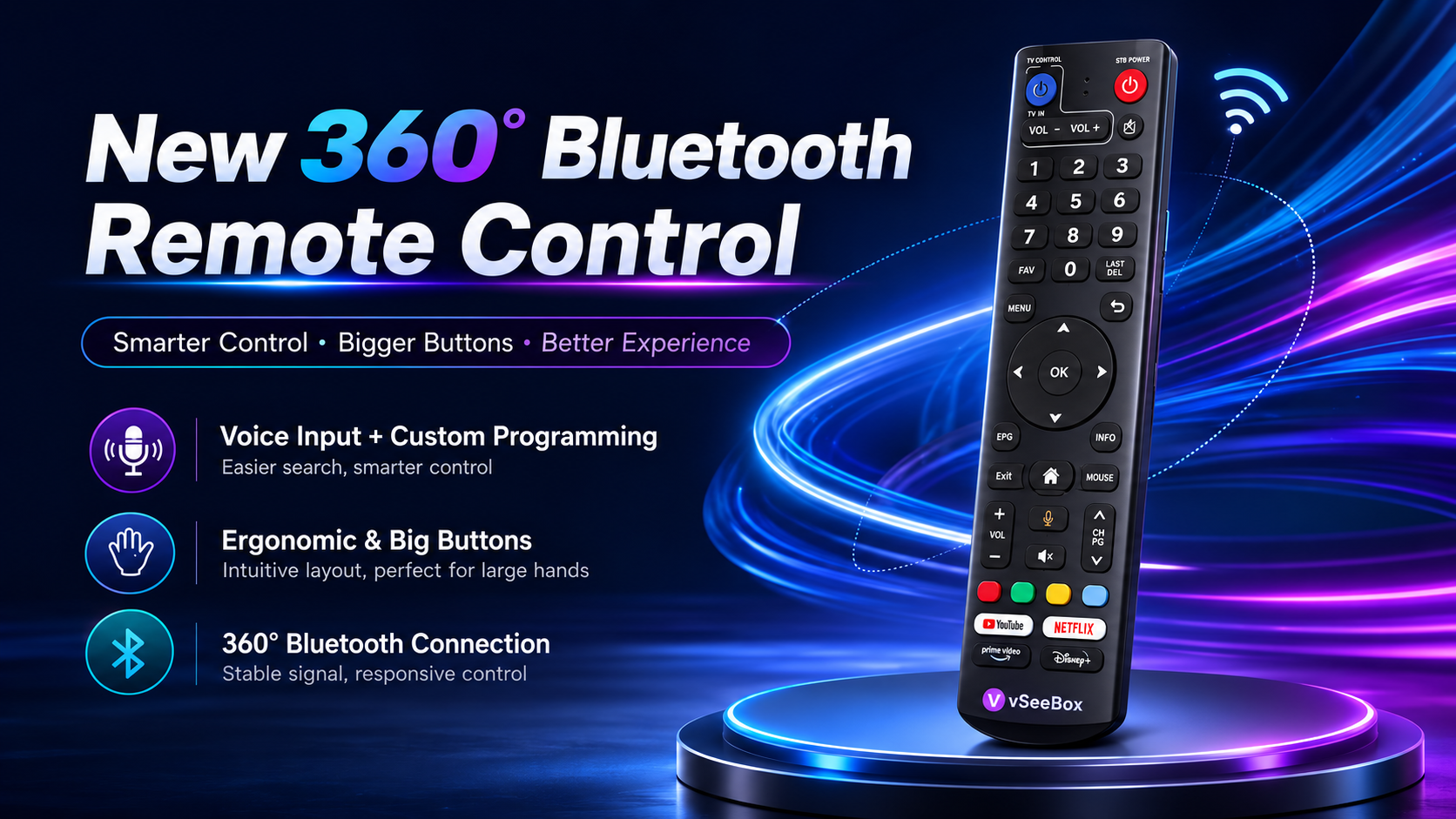
This article introduces the advantages and functions of vSeeBox remote control in detail. Aiming at the pain points of traditional remote control, vSeeBox remote control makes the operation more convenient for users and easy to use for the elderly by means of simplified interface and partition design.
Contents
1.Brief Introduction
2.Why do you need vSeeBox remote control?
- 1 Trouble with traditional remotes: have you experienced these headache moments?
- 2 vSeeBox Intelligent Remote Control: Make TV Operation Simple
- 3 Three amazing functions
- 4 The whole family TV will work
3.vSeeBox remote control full button analysis
- 1 Top function area: core control center
- 2 Numeric Key Area: Shortcut Input and Favorites Management
- 3 Center navigation area: the core of menu operation
- 4 Function key area: high-frequency operation is completed by one key
- 5 Shortcut App Area: Streaming Media Direct Entrance
4.In - depth Experience of the Three Innovative Functions
- 1 One-click direct access: 3 seconds to open the streaming platform
- 2 Voice Input: Intelligent Interaction with Motion without Hands
- 3 Mouse Mode: Precise control of large screen interface
5.Advanced Usage Tips: From Novice to Expert
- 1 Favorites Management: Creating a Personalized Channel Library
- 2 Hidden features of the Electronic Program Guide (EPG)
- 3 Voice command library: 10+ commands to cover daily needs
6.What users really say about vSeeBox
7.FAQ
Why do you need vSeeBox remote control?
Trouble with traditional remotes: have you experienced these headache moments?
Do you often find yourself frantically searching for the Netflix app through layers of menus, to the point where you feel like throwing the remote across the room?
When teaching mom and dad how to use the remote, they always complain, “The buttons are so thick like a keyboard, and when you press it, it jumps to the wrong place!”
When you use the arrow keys to move the cursor in a webpage, you always select the advertisement link next to the “Play” button. ......
In fact, these problems are all due to the remote control being “too old-fashioned”:
- Too many buttons:more than 30 buttons with duplicate functions or rarely used.
- Single interaction:reliance on arrow keys and confirmation keys, unable to adapt to the complex needs of Smart TV.
- High learning cost:the elderly and children need a long time to adapt to the operation logic.
vSeeBox Intelligent Remote Control: Make TV Operation Simple
Are you often confused by the complicated remote control? vSeeBox helps you solve your troubles with a brand new design!
Simple enough not to use the manual
- Streamline the remote control interface, retaining only the most commonly used buttons, neatly arranged like the homepage of a cell phone.
- The buttons are divided into 4 zones according to the functions, so you don't need to be dazzled to find the functions.
- Grandparents can easily understand: 75% of elderly users can change the channel and adjust the volume the first time they use it.
Three Amazing Features
- Mouse Mode
Swipe and navigate like using a computer, allowing you to easily select and access the content or applications you want. - Quick Access Shortcuts
Quickly access frequently used applications and features with one click for a smoother and more efficient user experience. - Voice Control
Simply use your voice to perform basic actions such as searching content, adjusting volume, or controlling navigation for a more convenient hands-free experience.
The whole family TV will work
- Multi-scene adaptation: compatible with mainstream TV models (Samsung, Sony, LG, etc.).
- Actual Effect Verification According to user feedback data:operation steps are reduced by 60%, and the time for switching apps is shortened from an average of 12 seconds to 3 seconds.75% of the elderly users said that they could complete the basic operation the first time they used it.
vSeeBox remote control full button analysis
Top function area: core control center
- Power button:
Short press to switch on/off the TV, long press for 3 seconds to turn off the TV and external devices (e.g. audio).
- TV signal switching:
Click to switch HDMI, cable TV, AV input and other signal sources. Long press for 2 seconds to automatically search for available signal sources.
- Volume Adjustment:
VOL+/- keys adjust the TV volume. With the independent volume keys in the function key area, it realizes dual-zone quick control.
- Mouse Mode:
Click to enter mouse mode, the arrow keys change to cursor movement (sensitivity adjustable). Click again to return to traditional operation mode.
- Example of application scenario:
When typing a web address in the browser, use the mouse mode to click the virtual keyboard precisely.
Playing Angry Birds Journey, adjusting the angle of slingshot.
Numeric Key Area: Shortcut Input and Favorites Management
- Numeric keys 0-9:
Directly input channel number (e.g. “506” to jump to the specified channel). Quickly type characters in the password input screen (e.g. Wi-Fi connection).
- LAST key:
Return to the last watched channel or application.
- FAV Favorites key:
Short press: open the favorites list.
Long press for 2 seconds: add the current channel/application to favorites.
Center navigation area: the core of menu operation
- Four-way navigation keys:
Move the focus up, down, left and right for easy navigation through menus and content lists.
- Confirmation key:
Select the currently highlighted option and perform the corresponding operation.
- Set program reminder:
Press Confirm button to add reminder after selecting the program, 5 minutes before the start of the pop-up window to avoid missing the highlights.
- Menu:
Call up the operation menu of the current page, including playback settings, screen ratio adjustment, subtitle switch and other functions.
- Return:
Return to the previous menu or exit the current operation page.
- Information:
Display the detailed information of the current playback content, including video resolution, audio format, duration, current time and so on. When watching a movie or TV series, you can view the detailed playback information at any time without affecting the video progress.
Function key area: high-frequency operation is completed by one key
- Voice input:
Long press to speak, support English commands (e.g. “Play Taylor Swift's Blank Space MV”).
Multiple source platforms (YouTube/Spotify/Local files) are automatically displayed after recognition.
- Volume/Mute key:
Short press to adjust volume. Mute key click to mute.
- Previous / Next Navigation:
Easily switch between the previous or next item without returning to the main menu. This allows for a smoother and more convenient browsing experience.
- Home Button:
Press to return to the home screen from any interface. Double-press to open the list of recently used applications for quick access.
Shortcut App Area: Streaming Media Direct Entrance
- YouTube:
Automatically jump to the recommendation page of the logged-in account.
- Prime Video:
Goes directly to the “Continue Watching” list of episodes.
- Netflix:
Prioritizes customized content for personal accounts.
- Disney+:
Opens the “Marvel Cinematic Universe” category by default.
Voice command library: 10+ commands to cover daily needs
(The following are some examples of commonly used commands)
|
Scene |
Command Example |
Expected Response |
|
Viewing Control |
“Fast Forward 5 minutes” |
Jump to the specified time point. |
|
|
“Pause” |
Pause the current video or show. |
|
|
“Play next episode” |
Start the next episode of the series. |
|
|
“Rewind 10 seconds” |
Jump back by 10 seconds in the video. |
|
Volume Control |
“Increase volume” |
Volume will increase by a set level (e.g., 10%). |
|
|
“Mute the sound” |
Mute the audio of the current program. |
|
|
“Set volume to 50%” |
Adjust the volume to 50%. |
The core advantages of the vSeeBox remote control are outstanding. First of all, its efficiency improvement is extremely significant. The one-key direct access function directly reduces 80% of the operation steps, allowing you to easily control the TV without tedious operation. Secondly, it is friendly to all ages. Voice and mouse modes greatly reduce the threshold of use, so both the elderly and children can quickly get started and enjoy the fun brought by smart TV.

What users really say about vSeeBox
“My parents can finally change the channel by themselves without having to call me every time to ask, the vSeeBox remote is really so convenient!” (California user,Jessica )
“When playing small games in Google play, the mouse mode is more convenient than the joystick, the operation is precise and smooth, and the gaming experience is directly full.” (Gamer, Tom)
“In the past, it took half a day to find apps with the traditional remote control, but now with the vSeeBox remote control, I can open Netflix in a few seconds with a single click, so it's great to catch up on TV shows.” (New York user, Mike)
“The elderly in my family have poor eyesight, and the buttons on the traditional remote control are too small to read, but the vSeeBox remote control has large and clear buttons, so the elderly can use it smoothly, and they don't have to ask me to help them change the channel all the time.” (Florida user, Lily)
“The voice function of vSeeBox remote control is so practical, you can directly say what you want to watch, and the recognition accuracy is very high, it really frees up your hands, I like this design too much!” (Texas user, Bob)
Don't hesitate anymore! Click the link to buy vSeeBox and start a new control experience for your Smart TV. Order now and enjoy great benefits:
We give you a free mini keyboard to make your text input more convenient and efficient, whether you are searching for movies or browsing the web, it's easy to deal with.
And we offer 14-day return and exchange service, so you can shop without worries.
Take advantage of this great opportunity to bring vSeeBox home and enjoy the wonderful world of Smart TV!
FAQ
1.What TV models does vSeeBox remote control support?
Widely support common brand TVs in the market, including Samsung, Sony, LG, Hisense, TCL and so on. Just make sure your TV has HDMI jack.
2.What should I do if my voice commands do not respond?
Follow the steps below to troubleshoot:
Check whether the microphone hole at the bottom of the remote control is blocked.
Press and hold the voice button for 3 seconds, and then re-pair when you hear the “beep” sound.
Update the TV system to the latest version.
3.How to solve the malfunction of shortcut button?
Go to Settings → Remote Control Management → Re-bind apps.
4.How long does the battery of vSeeBox remote control last and how to replace it?
The vSeeBox remote control can be used for about 6 - 12 months under normal conditions. When the battery is low, the remote control will indicate accordingly. Replacing the batteries is easy, just open the remote control battery compartment cover, insert new batteries according to the correct polarity, and then close the cover.
5.If the vSeeBox remote control malfunctions, is it easy to repair after-sale?
We provide perfect after-sales service. If the remote control malfunctions under normal use, you can choose to return or exchange it within 14 days after purchase. Beyond 14 days, if there is any quality problem during the warranty period, you can contact our after-sales customer service, we will provide you with repair service, so that you can have no worries.